





SoundSpectrum music visualization software
Aeon G-Force SoftSkies WhiteCap WW Tunr
Home
News Testimonials Forums Licensing Support
 Cart
     
SoundSpectrum Audio Cable
SoundSpectrum's visuals are offered as a plug-in for audio players such as iTunes and Windows Media Player, but they also run as a standalone application that can visualize any audio source that your computer makes available. Our standalone application documentation describes how to set this up in detail.

SoundSpectrum Audio Cable is a Windows sound extension bundled with SoundSpectrum’s Platinum products, allowing system audio to be looped-back to a standalone application running our visuals. In effect, audio from any program or web browser can be visualized using G-Force, Aeon, or WhiteCap Standalone. This means you can visualize any audio you like on a Windows system.

If you’re using macOS, you can use an audio-routing app such as Loopback by Rogue Amoeba. For a free, open-source option, we recommend BlackHole.

Setting Up SoundSpectrum Audio Cable
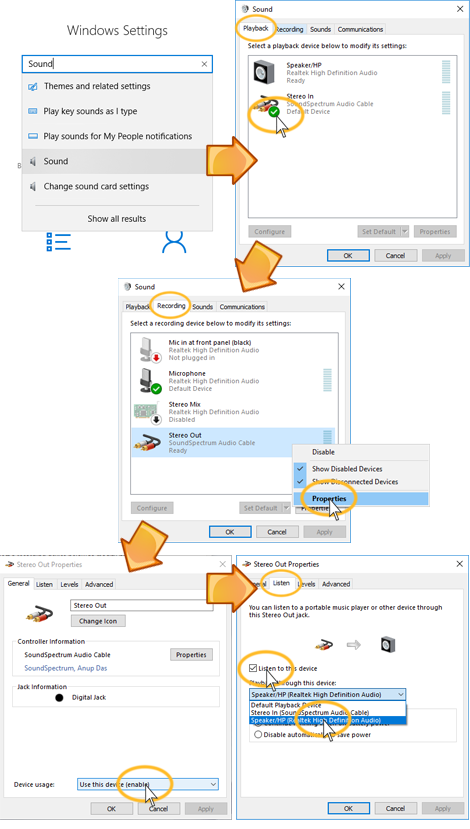
  1. In Windows, press Windows+R, type mmsys.cpl and press Enter (on Windows 11 you can also open Settings > System > Sound and click More sound settings under Advanced).
  2. Select the Playback tab.
  3. Right-click on Stereo In and select Set as Default Device.
  4. Select the Recording tab.
  5. Right-click on Stereo Out and select Properties.
  6. On the General tab, make sure Device usage is set to Use this device (enable).
  7. Select the Listen tab.
  8. Check the box Listen to this device.
  9. Under Playback through this device, select your speakers or headphones by name. Don’t leave it on Default Playback Device: after step 3 that is Stereo In, and you would hear nothing.
  10. Press the "OK" button (closing the Properties window).
  11. Press the "OK" button (closing the Sound window).
  12. Restart the Standalone application and change the audio source to Stereo Out (right-click its window, or use Settings > Audio Input Source).


soundspectrum audio cable windows help
Follow the above steps to set up SoundSpectrum Audio Cable on Windows.
To undo, set your speakers back as the default device on the Playback tab.
 
 
random g-force graphic
 
Follow SoundSpectrum
  SoundSpectrum on Facebook  
 
Follow SoundSpectrum
  SoundSpectrum on Facebook  


Please keep me on your files and keep me updated on everything that has to do with G-force. I am very satisfied with this product.
- Thomas C.


Have a Comment?
 

We’d love to hear from you! Tell us
what you think
about G-Force.

 
Terms of Use  |   Privacy Policy  |   About Us  |   Feedback

© 2026 SoundSpectrum, Inc.